
Customer Svc: 855-620-2330 -
M-Sat -9am-6pm
Speak To Customer Service - 855-620-2330 - M-Sat 9:00am - 6:00pm MST
Customer Svc: 855-620-2330 -
M-Sat -9am-6pm
Speak To Customer Service - 855-620-2330 - M-Sat 9:00am - 6:00pm MST

Last Updated: August 29, 2026
Golf simulator systems demand specific dimensions. Undersized rooms cause poor swing mechanics, equipment damage, and software calibration failures.

Measure your ceiling height, swing area depth, and lateral clearance. Most enclosures require a minimum of 8 feet of ceiling clearance for a full swing (pga.com). The swing area needs at least 6 to 10 feet of depth from the hitting position to the impact screen, with 4 to 5 feet of lateral space on either side for natural swing mechanics.
A 9-foot ceiling in a basement isn't a deal-breaker but constrains your options. You'll need a compact launch monitor and minimal-height hitting mat. Some software accommodates reduced swing planes better than others.
Total Golf Simulators offers the Carl's Place DIY Golf Simulator Enclosure Kit in multiple sizes, starting at $1,149.95. Measure your space first, then match it against enclosure dimensions.
Your PC is the processing engine for the entire system. Golf simulator software has baseline hardware requirements that directly affect performance, graphics quality, and latency.
Most modern software requires a multi-core processor (Intel i7 or AMD Ryzen 7 equivalent or better), 16GB of RAM minimum, and a dedicated GPU with at least 4GB of VRAM (peer-reviewed research). These specs ensure smooth frame rates (60 fps or higher) and responsive ball tracking.
Verify operating system compatibility carefully. Windows-based simulators dominate the market, but some software runs on macOS or Linux. Confirm your specific OS version is supported, a 2018 MacBook running older macOS may fail to run current simulator software.
GPU acceleration is critical. The launch monitor sends ball and club data to your PC, which renders course graphics in real time. A weak GPU creates latency between your swing and the on-screen result, breaking immersion. Nvidia GPUs (RTX series) are widely supported; AMD GPUs work but may require additional driver configuration.
Storage is often overlooked. Modern golf courses occupy 50-100GB of disk space. Ensure at least 250GB of free storage on the drive where simulator software is installed. Running on a nearly-full drive causes stuttering and crashes.
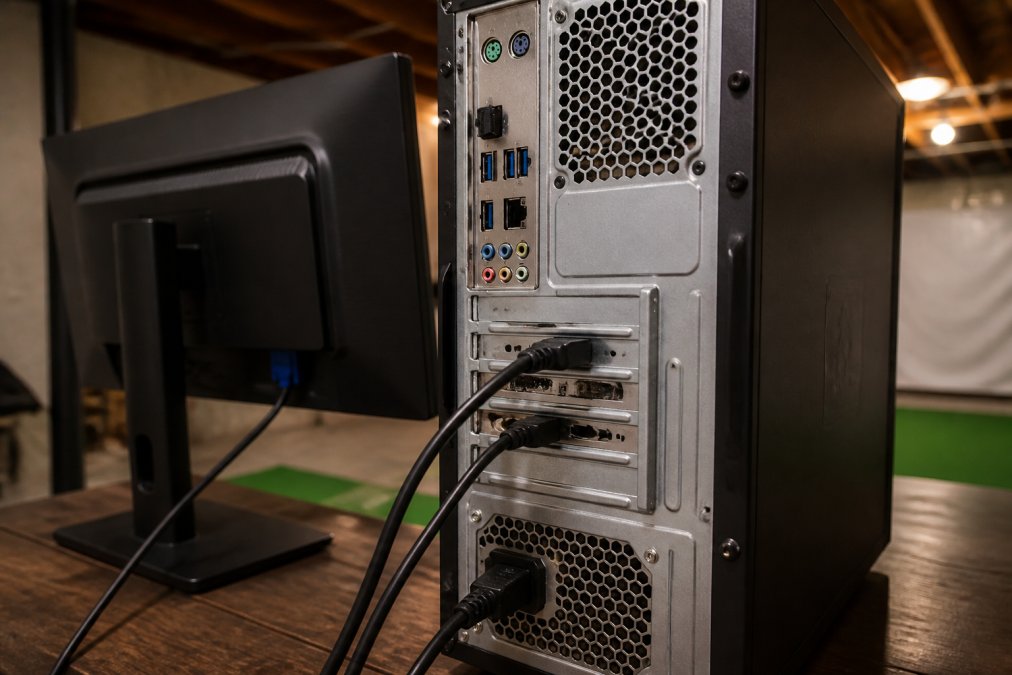
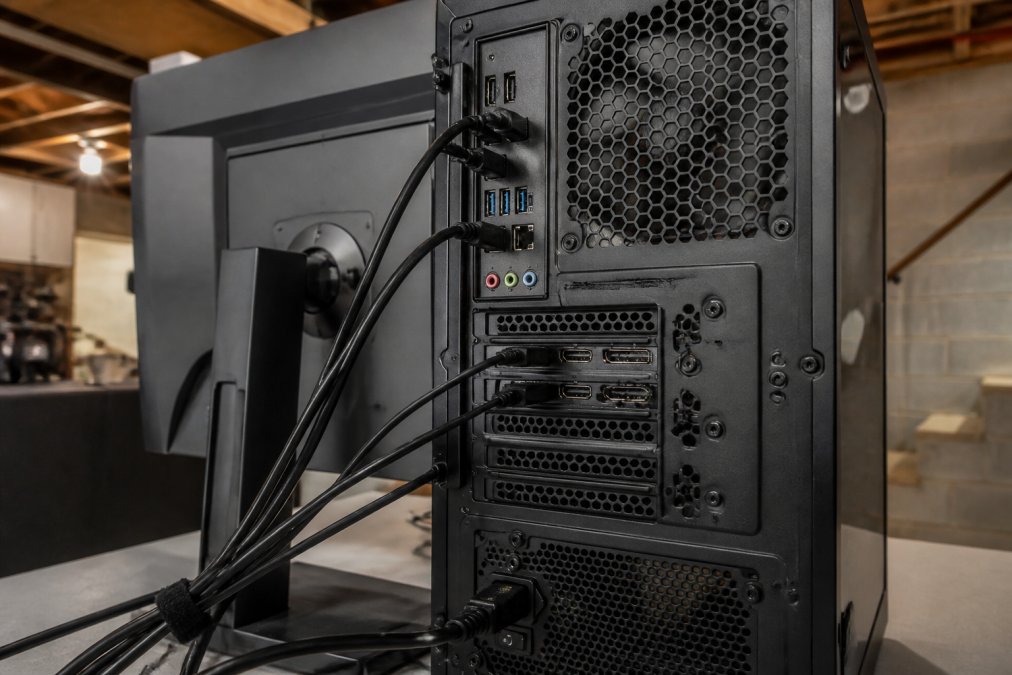
Golf simulator hardware communicates through specific interface standards. Your launch monitor connects via USB-C, HDMI, or wireless protocol (2.4GHz or 5GHz Wi-Fi). The projector connects via HDMI or DisplayPort.
Verify your PC has the required ports. If your launch monitor uses USB-C but your PC only has USB 3.0 Type-A ports, you'll need an adapter, which may introduce latency or compatibility issues. Wired connections (USB-C, HDMI) are more stable than wireless for launch monitor data transmission.
Check bandwidth requirements. A launch monitor transmitting ball and club data 60 times per second requires significant throughput. USB 3.1 (5 Gbps) is the practical minimum; USB 2.0 (480 Mbps) causes data loss and tracking failures. HDMI 2.0 or higher is required for high-refresh-rate projectors (120Hz or faster).
For wireless protocols, 2.4GHz Wi-Fi is more prone to interference from microwaves and cordless phones. 5GHz Wi-Fi is faster and less congested but has shorter range. Network latency between launch monitor and PC should be under 50 milliseconds for imperceptible responsiveness. 100ms+ latency creates noticeable delay between your swing and the on-screen result.
A launch monitor is a hardware sensor that measures ball flight and club data. The simulator software interprets that data and renders the golf course. They must speak the same language.
Some launch monitors use proprietary protocols. A Trackman monitor uses Trackman's native software ecosystem. A GCQuad uses its own data format. These devices may not integrate with third-party golf simulation software without middleware or API adapters. Before purchasing a launch monitor, confirm that your chosen simulator software has native integration with that monitor.
Third-party integration layers exist via standardized formats like GSPro or E6Connect, but integration quality varies. One platform may perfectly sync ball flight data while another experiences data dropouts or calibration drift.
Firmware updates improve accuracy and add features. Your PC must be able to download and install these updates. Some older launch monitors require Windows-only firmware update tools; Mac users may be locked out of updates, creating a hidden compatibility bottleneck.
Calibration protocols differ between monitors and software. A launch monitor must be calibrated to your specific hitting mat and enclosure setup. If calibration data doesn't translate to your chosen software, you'll see unrealistic ball flight or phantom shots. verify device compatibility.
Total Golf Simulators guides customers through launch monitor and software pairing during setup, ensuring clean integration before installation.
The hitting mat's construction, thickness, and material affect how the launch monitor reads the shot and how realistic the swing feels.
Thin, hard mats (under 1 inch) transmit accurate ball strike data but feel artificial and cause joint stress during extended sessions. Thicker, softer mats (1.5 to 2 inches) feel more like real grass but may compress unevenly, creating inconsistent readings.
The mat's surface material matters. Synthetic turf over rubber absorbs impact differently than natural grass. A launch monitor calibrated for natural grass may misread shots off synthetic turf. Some mats include a marked "sweet spot" where the launch monitor is most accurate; outside that zone, accuracy degrades.
Real grass in an indoor enclosure is impractical for most home setups. Grass requires drainage, sunlight, and maintenance, and generates inconsistent launch monitor data because grass density and moisture vary.
The best compromise is a premium synthetic mat (1.5 to 2 inches) designed specifically for launch monitor compatibility. These mats are calibrated to match natural grass ball flight characteristics and wear more evenly than budget alternatives.
The projector displays the golf course on the impact screen. Throw distance is the physical distance from the projector lens to the screen surface. If your ceiling height or enclosure depth doesn't match the projector's throw distance, you'll have a blurry image or won't fit the projector in your space.
Calculate throw distance before purchasing. Measure from where your projector will mount (typically on the ceiling, 1-2 feet behind the golfer) to the impact screen. Most golf simulator projectors have a throw distance of 6 to 12 feet. If your enclosure is 9 feet deep and your projector requires 10 feet, the projector will be too close and out of focus.
Short-throw projectors (3 to 5 feet) exist but are sometimes more expensive. They're useful for compact spaces but sacrifice brightness and image quality.
The projector's brightness (measured in lumens) must match the screen's gain (reflectivity). A high-lumen projector paired with a low-gain screen washes out the image. A low-lumen projector on a high-gain screen produces a dim, uneven picture.
Impact screens designed for golf simulators are made from woven nylon or vinyl. They absorb ball impact without tearing and display the golf course clearly.
The Carl's Place Pro Golf Simulator Enclosure includes a customizable impact screen designed for optimal projector compatibility, with dimensions engineered to work with standard throw-distance projectors.

Even with careful planning, compatibility issues arise. Understanding common problems and solutions helps you diagnose and fix them quickly.
Launch monitor loses connection to PC. Verify the cable or wireless network is functioning. If the connection drops intermittently, the issue is often interference (wireless) or a marginal cable (wired). Try moving the PC closer to the launch monitor, or switch from wireless to wired. Update the launch monitor's firmware, connection stability often improves with patches.
Ball flight data is erratic or unrealistic. Recalibrate the launch monitor according to the manual, ensuring the mat is clean and level. If calibration doesn't help, check that the software uses the correct monitor profile. Some software allows you to select between different launch monitor models; selecting the wrong model causes data interpretation errors.
Projector image is blurry or out of focus. Check the throw distance by measuring from the projector lens to the screen surface. If the distance doesn't match specifications, the image will be out of focus. Verify the projector is level and square to the screen. A tilted projector creates keystone distortion.
Software crashes when the launch monitor connects. The software likely lacks the required driver. Visit the launch monitor manufacturer's website and download the latest driver for your operating system. Uninstall the old driver completely before installing the new one, then restart your PC.
Latency between swing and on-screen result. Check that your GPU runs at full power (not throttled). For wireless connections, switch to 5GHz Wi-Fi if available, or use a wired connection. Reduce the software's graphics settings, lower resolution and fewer visual effects reduce GPU load and latency.
Impact screen tears or shows wear. Inspect the screen regularly for small tears. Patch them with screen repair tape before they spread. If heavily damaged, the screen may need replacement. Total Golf Simulators offers replacement screens for most enclosure models.
According to the USB Implementers Forum technical specifications, USB 3.1 provides sufficient bandwidth for real-time launch monitor data transmission. Ensuring your PC has USB 3.1 ports eliminates a common compatibility bottleneck.
Building a golf simulator that works requires matching hardware, software, and physical space into a coherent system. The steps outlined here, verifying ceiling height, confirming PC specs, checking connectivity, integrating launch monitor and software, selecting the right mat, and testing projector compatibility, form a compatibility audit that catches problems before you invest in equipment.
Total Golf Simulators has helped hundreds of customers navigate these decisions. The team provides a Simulator Finder Quiz to match your space and budget to compatible equipment, plus step-by-step guidance during setup. The Price Match Guarantee on all products and free shipping on most items remove financial friction. If compatibility issues arise after installation, Total Golf Simulators offers expert support to diagnose and resolve them. Start with the compatibility framework in this guide, then reach out to Total Golf Simulators to build your system with confidence.
Compatibility Check |
What to Verify |
Impact If Missed |
|---|---|---|
Ceiling height |
Minimum 8 feet; 9-10 feet ideal |
Restricted swing mechanics; club-ceiling contact |
PC specifications |
i7 CPU, 16GB RAM, dedicated GPU |
Stuttering, latency, software crashes |
USB/HDMI ports |
USB 3.1 minimum; HDMI 2.0+ |
Data loss, connection dropouts |
Launch monitor integration |
Native software support; firmware compatibility |
Erratic ball flight data; calibration drift |
Hitting mat quality |
1.5-2 inch premium synthetic |
Inconsistent launch monitor readings |
Projector throw distance |
Match to enclosure depth |
Blurry image or physical fit problems |
A dedicated gaming PC with a modern GPU (NVIDIA RTX 3060 or better), at least 16GB RAM, and an SSD for fast loading is ideal. Most simulator software requires Windows 10 or 11. Your PC should connect to your launch monitor via USB or wireless protocol, so verify your system has the correct ports or wireless adapter before purchase. Check your specific software's minimum specs to ensure compatibility.
Your hitting mat must accommodate your launch monitor's sensor placement—typically 6 to 12 inches behind the ball strike zone. Mat thickness should be 0.75 to 1.5 inches to provide realistic feedback while protecting the optical or radar sensors. Verify the mat's material won't interfere with ball data capture. Quality mats like those paired with professional enclosures are pre-tested for compatibility with major launch monitors.
A 9-foot ceiling is tight but workable for most home setups. You'll need at least 8.5 feet of clear vertical space from the mat to the ceiling. This limits your swing to a controlled, three-quarter motion rather than a full swing. If you have a 10-foot or higher ceiling, you gain significantly more freedom. Measure your actual clearance and confirm it matches your enclosure's height specifications before ordering.
Distance issues usually stem from launch monitor calibration, driver conflicts, or latency between your swing and software response. Ensure your launch monitor is properly calibrated and positioned at the correct distance from the ball strike zone. Check that your PC drivers are current and your simulator software is fully updated. Latency and frame rate mismatches between your GPU and the software can also cause inaccurate ball flight data. Verify your GPU acceleration is enabled in software settings.
This article was written using GrandRanker