
Customer Svc: 855-620-2330 -
M-Sat -9am-6pm
Speak To Customer Service - 855-620-2330 - M-Sat 9:00am - 6:00pm MST
Customer Svc: 855-620-2330 -
M-Sat -9am-6pm
Speak To Customer Service - 855-620-2330 - M-Sat 9:00am - 6:00pm MST

Last Updated: October 20, 2026
Your launch monitor does not see a golf ball. It sees light bouncing off one. Optimizing golf simulator lighting for sensors controls the variable that breaks more readings than bad swings do.
Every tracking technology reads contrast, motion, or reflected signal. Change the light and you change what the sensor thinks it saw: a dim bulb can drop club data, and a bright window behind the screen can wash out an optical read.
Here is how to place, aim, and control light so your sensor reads every shot.
The right lighting plan starts with one question: what kind of sensor are you feeding? Each technology reads the ball through a different channel and fails differently when the light is wrong.
Camera-based tracking (high-speed stereo or mono cameras). These capture short-exposure frames of the ball and club, then calculate position from the images.
Infrared and IR-illuminated systems. These carry their own emitter, so they tolerate lower visible light than camera systems.
Radar tracking. Radar measures ball flight with radio waves, so visible brightness matters far less.
Photometric and multi-camera systems. These combine several cameras or a camera plus a light source and are the most demanding.
Camera-based systems are the fussiest about light. They need a fast, consistent shutter speed, and flickering bulbs create banding that corrupts the frame, which is why flicker-free LEDs matter more than raw brightness.
Aim for even light across the hitting zone, with the ball and club clearly brighter than the wall behind them.
The U.S. Department of Energy guide to LED lighting explains why quality LEDs flicker less than older bulbs, which is exactly the trait camera sensors need.
Placement decides whether light helps the sensor or blinds it. The goal is a cone of light aimed down at the ball, club, and mat, not a flood across the room or onto the impact screen.
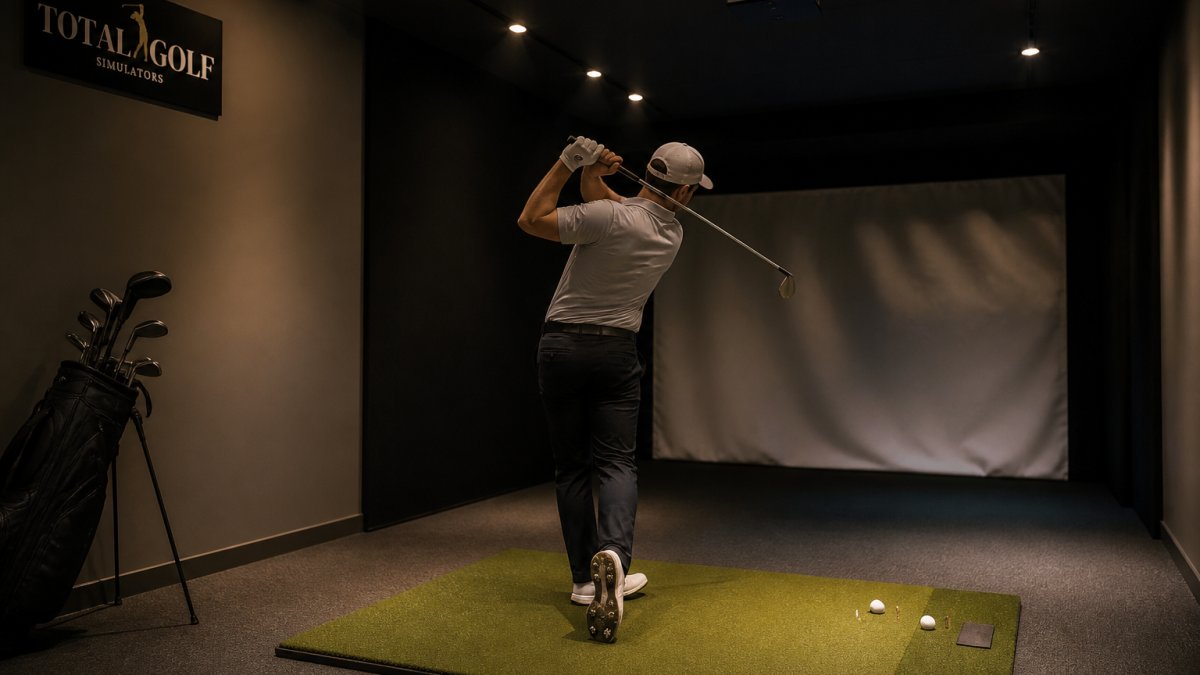
Use these placement rules as your starting point:
A repeatable method: stand at the ball position and look up. If you can see the bare bulb, it can see you too, and it can glare into the sensor.
Brightness and color temperature are the two dials most people set by feel. Set them by function: golf simulator lumens should light the hitting area clearly without spilling onto the screen, and color temperature should stay consistent for the camera.
The Illuminating Engineering Society publishes lighting standards that treat task lighting and ambient lighting as separate jobs, which is exactly how a simulator should be lit.
Ambient light control for golf simulators is the step people skip, and it is why a perfectly aimed fixture still produces bad reads at 3 p.m.
Start with the windows:
The NASA Goddard Earth Observatory on sunlight intensity notes that direct sunlight is orders of magnitude brighter than indoor lighting, which is why a single bright window can overwhelm your whole setup. Block it, then build your own light.
SkyTrak lighting and missed shots are a common pairing, and the fix is usually a routine, not a new device. When readings drop, work through the same sequence every time. The routine below is written for SkyTrak but applies to any camera-based monitor.
Run these in order, changing only one variable at a time.
Use the pattern of misses to narrow the cause:
Rather than guessing at brightness, compare relative levels at three points: the ball, the mat under it, and the wall or screen behind it. The ball and mat should read noticeably brighter than the background, and all three should stay stable across the hitting zone. Exact lux values vary by monitor, so follow the manufacturer's guidance where published and treat uniformity, not raw brightness, as the goal.
The final step is balance: bright enough for the sensor, dark enough for the screen.
The Occupational Safety and Health Administration on lighting and glare treats glare as a visibility hazard, and the same logic applies here: light that reflects into the eye or lens reduces what you can actually see.
Here is the summary we hand to clients:
Problem |
Likely Cause |
Fix |
Impact on Sensor |
|---|---|---|---|
Missed reads in daylight |
Ambient light from windows |
Blackout shades, seal gaps |
Restores consistent contrast |
Hotspot on screen |
Fixture aimed at impact screen |
Re-aim down at hitting zone |
Stops screen washout |
Random missed shots |
Bulb flicker |
Swap to flicker-free LEDs |
Steady frames for cameras |
Shadow over the ball |
Single overhead fixture |
Add angled second light |
Even ball and club lighting |
Glare into the lens |
Bare bulb in sensor's view |
Shield or re-aim fixture |
Clean, readable image |
Get these four steps right and your sensor sees what it needs: a bright, steady ball against a dark, quiet background. That is the whole game.
It depends on the job the light is doing. For the hitting area, aim for enough focused task lighting on the ball and mat that the sensor sees a clean, evenly lit target, typically a few hundred lumens per fixture directly above the ball rather than a single bright ceiling light. For the projection surface, keep lumens low and separate from the hitting zone so the image stays crisp. Match projector brightness to screen size and room darkness, and never let hitting-area light spill onto the impact screen.
Yes. Stray daylight and room lighting can wash out infrared and camera-based sensors, causing missed reads or wrong ball data. Ambient light control for golf simulators means covering windows with blackout curtains, using dimmers, and keeping light off the impact screen. If your sensor misses shots at the same time each day, sunlight through a window is a common cause. Test by blocking the window and re-hitting; if reads return, add room darkening.
SkyTrak lighting and missed shots go hand in hand. The unit needs a clear view of the ball, so harsh overhead glare, direct sunlight, or a shadow falling across the ball can cause missed reads. Position lights to the side or behind the unit rather than directly above it, keep the ball in even light, and remove reflective objects near the hitting zone. If misses persist, check ball placement and firmware before blaming the hardware.
Place fixtures so light lands on the ball and hitting mat from the side or slightly behind the sensor, never straight into the camera lens. Keep fixtures at least a few feet away from the sensor housing, use flicker-free LED bulbs, and angle beam spread to cover the hitting zone without hitting the screen. Run a test session after each change and note which shots read cleanly, then lock the setup in place.
Building a simulator that reads every shot comes down to getting the light right before anything else. Total Golf Simulators helps you match the right launch monitor, enclosure, hitting mat, and projector so the whole system works together, backed by our Price Match Guarantee, free shipping on most items, and a Simulator Finder Quiz that fits a setup to your space and budget. Get started with Total Golf Simulators and turn your room into a bay that reads every swing.